
Installation guide
Installation & Setup Guide
Everything you need to go from download to your first search — on Windows and macOS.
Windows installation
- 1Download the application
Go to 103finder.shop and download the Windows version from the official website.
- 2Install the application
Open the installer, follow the installation process, and launch the application once installation is complete.
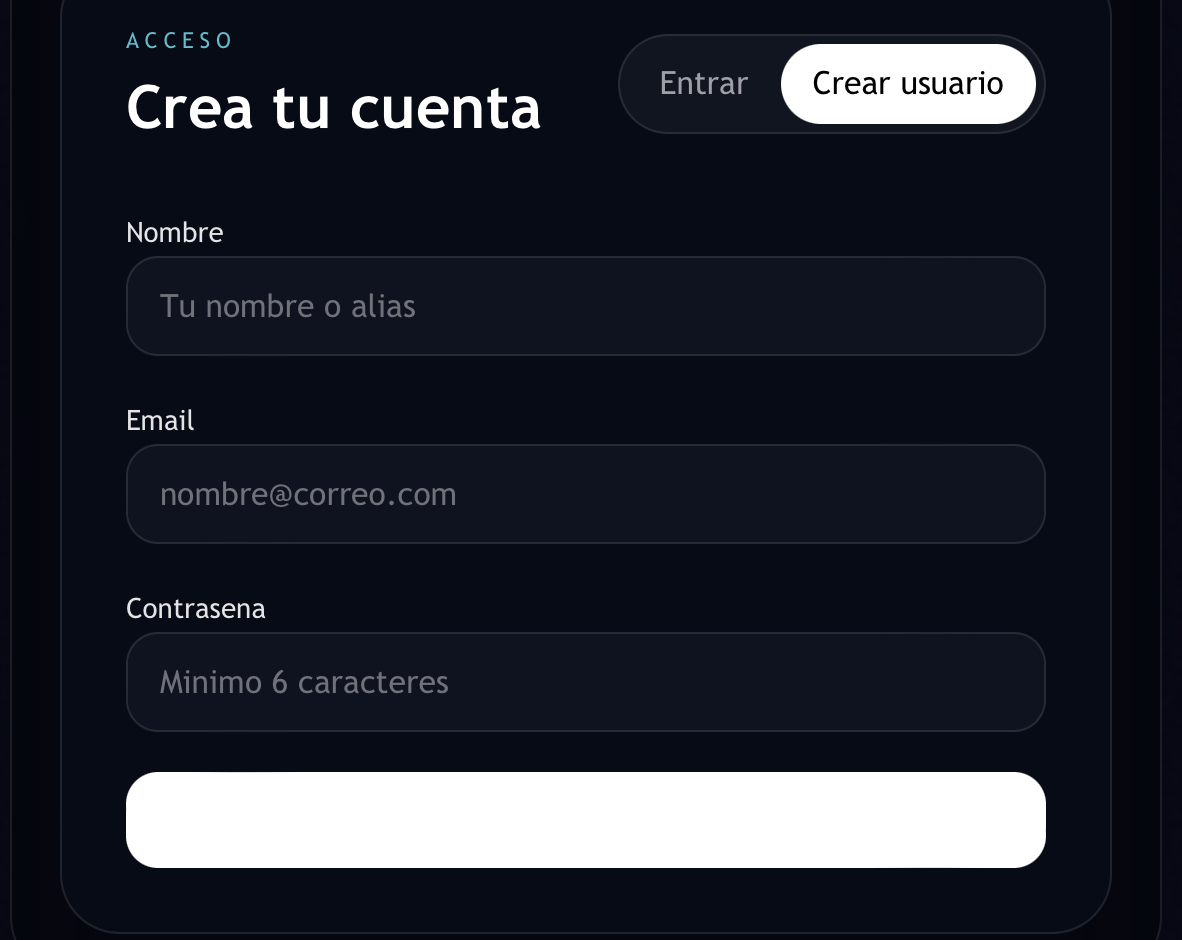
- 3Create an account
Open the app, click on 'Create Account', enter your email and password, and complete the registration process.
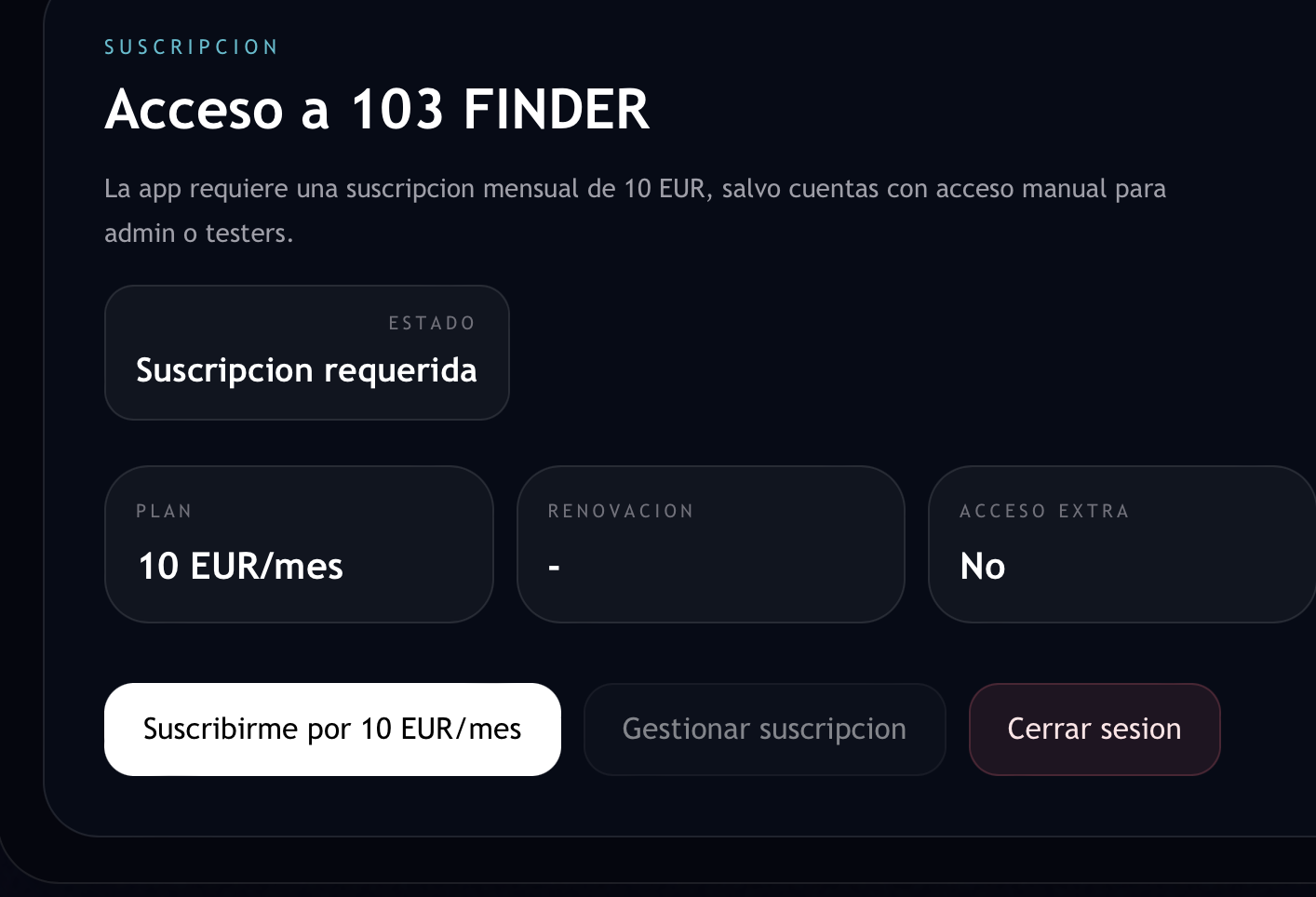
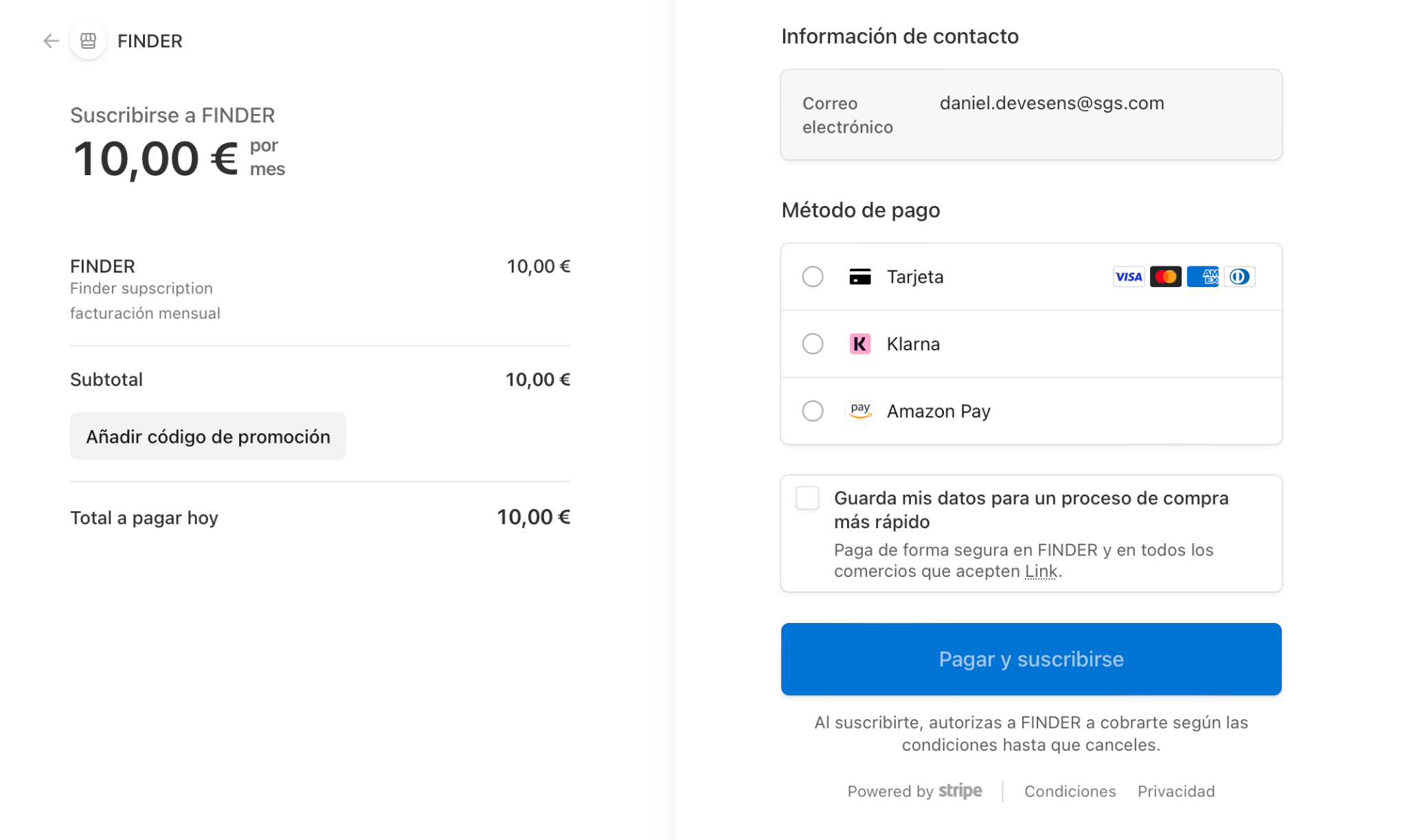
- 4Activate your subscription
Stripe checkout will automatically open. Complete the subscription payment and you will be redirected back to the app.
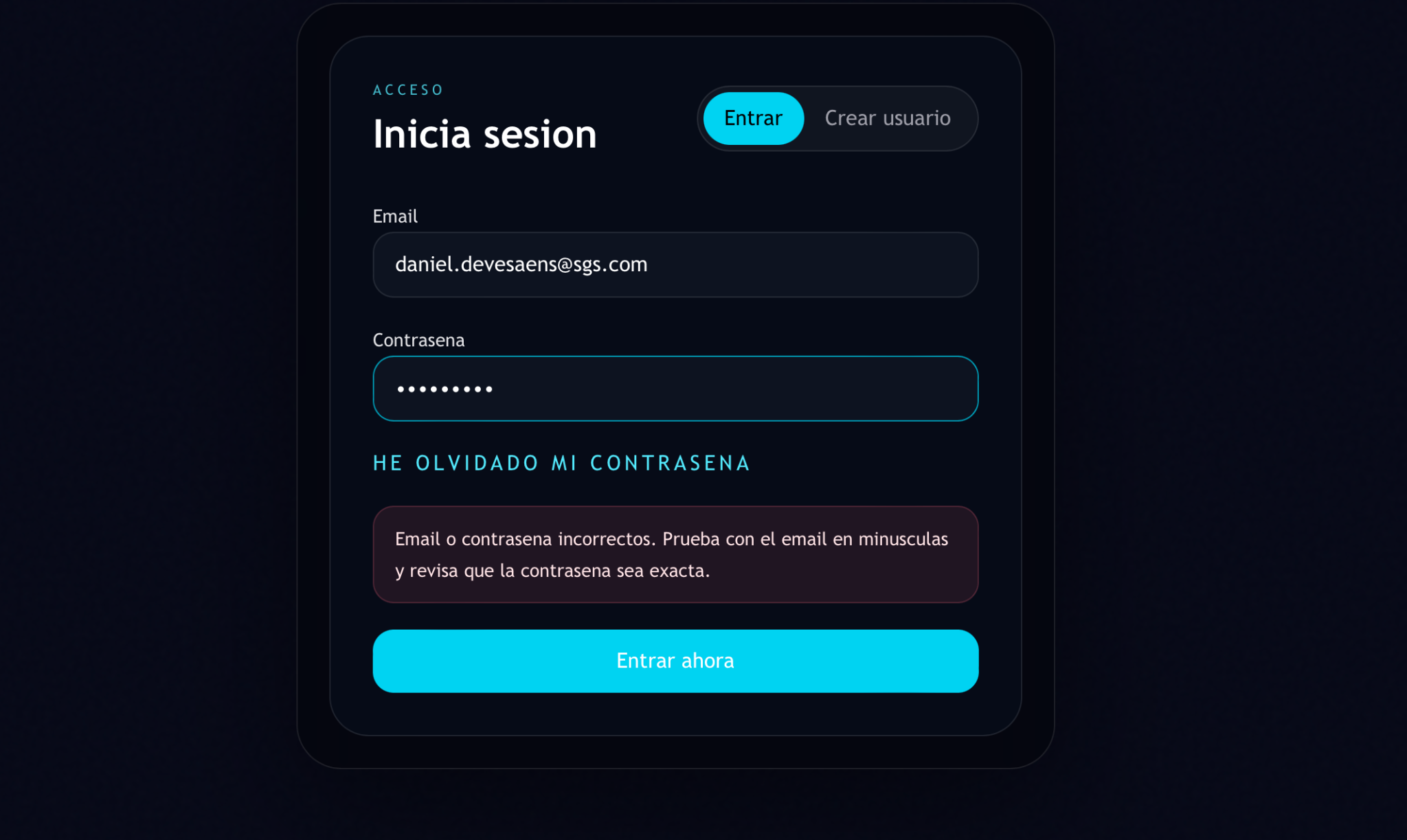
- 5Log in
Log into your account, completely close the app, reopen it, and log in again.
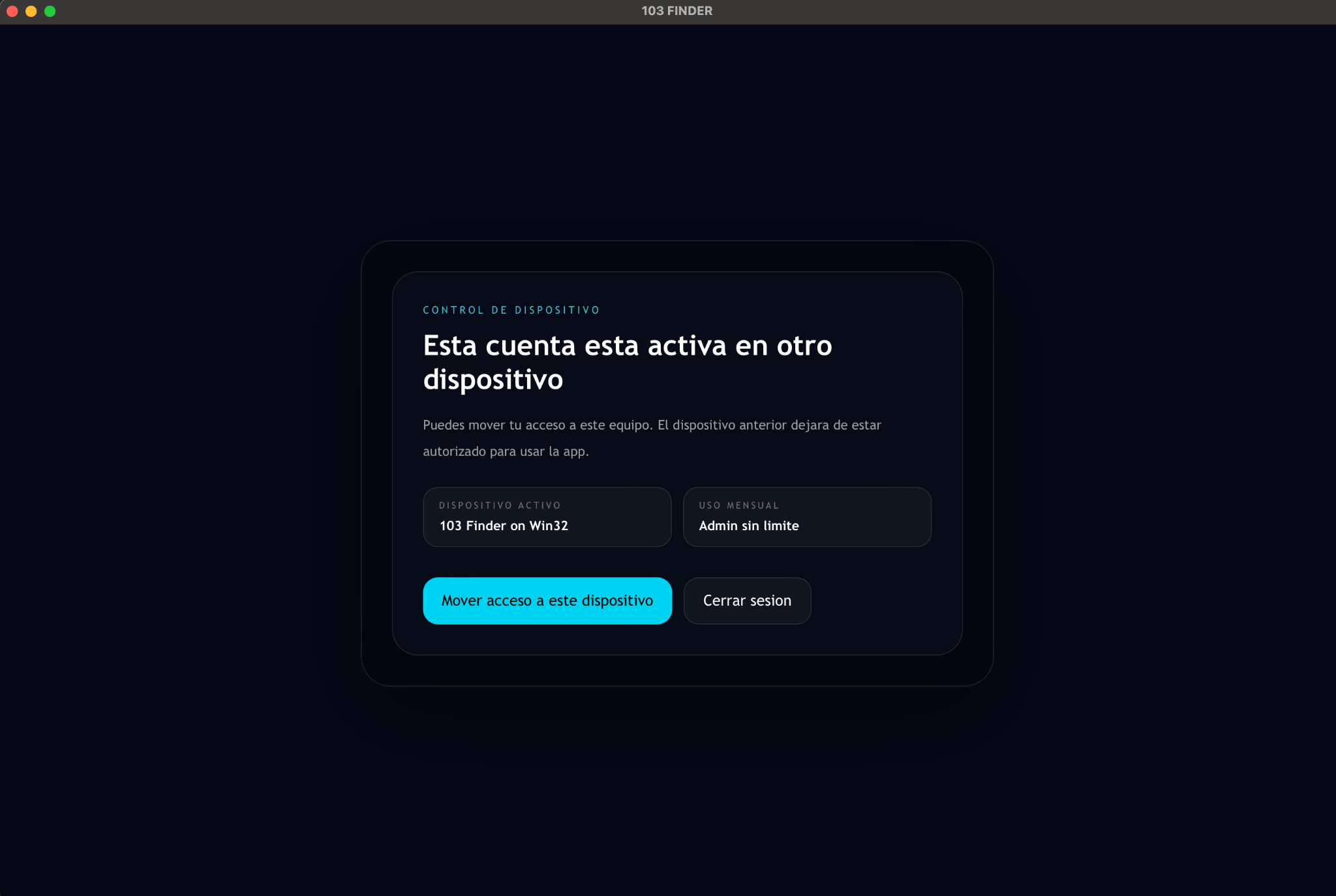
- 6Move the licence to your device
Inside the application, click on 'Move to this device' to link your subscription to your current computer.
- 7Get a Discogs API key
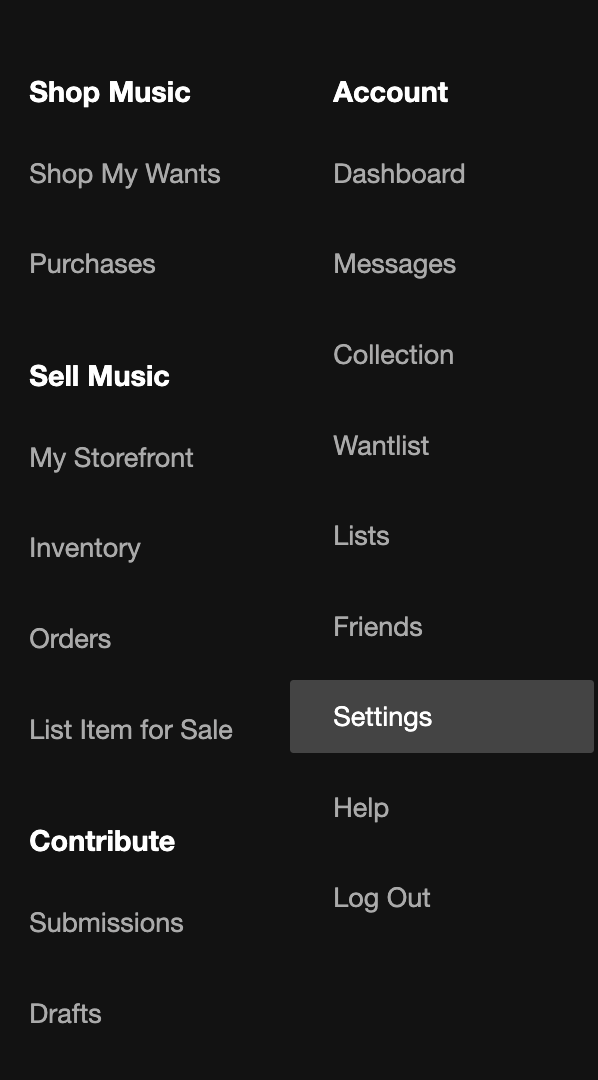
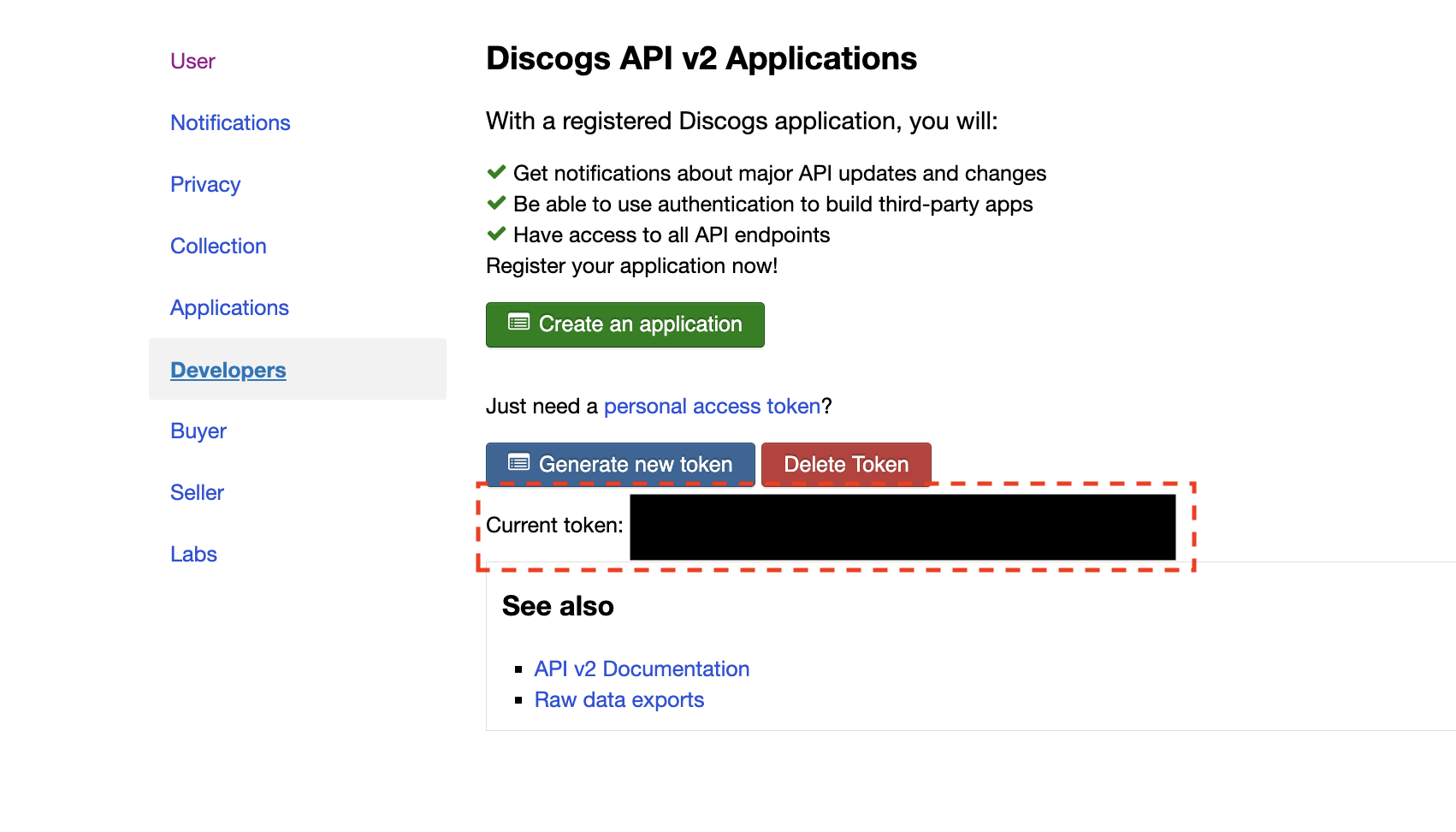
Visit discogs.com/settings/developers, log into Discogs, and generate your personal API key / token.
- 8Add your API key
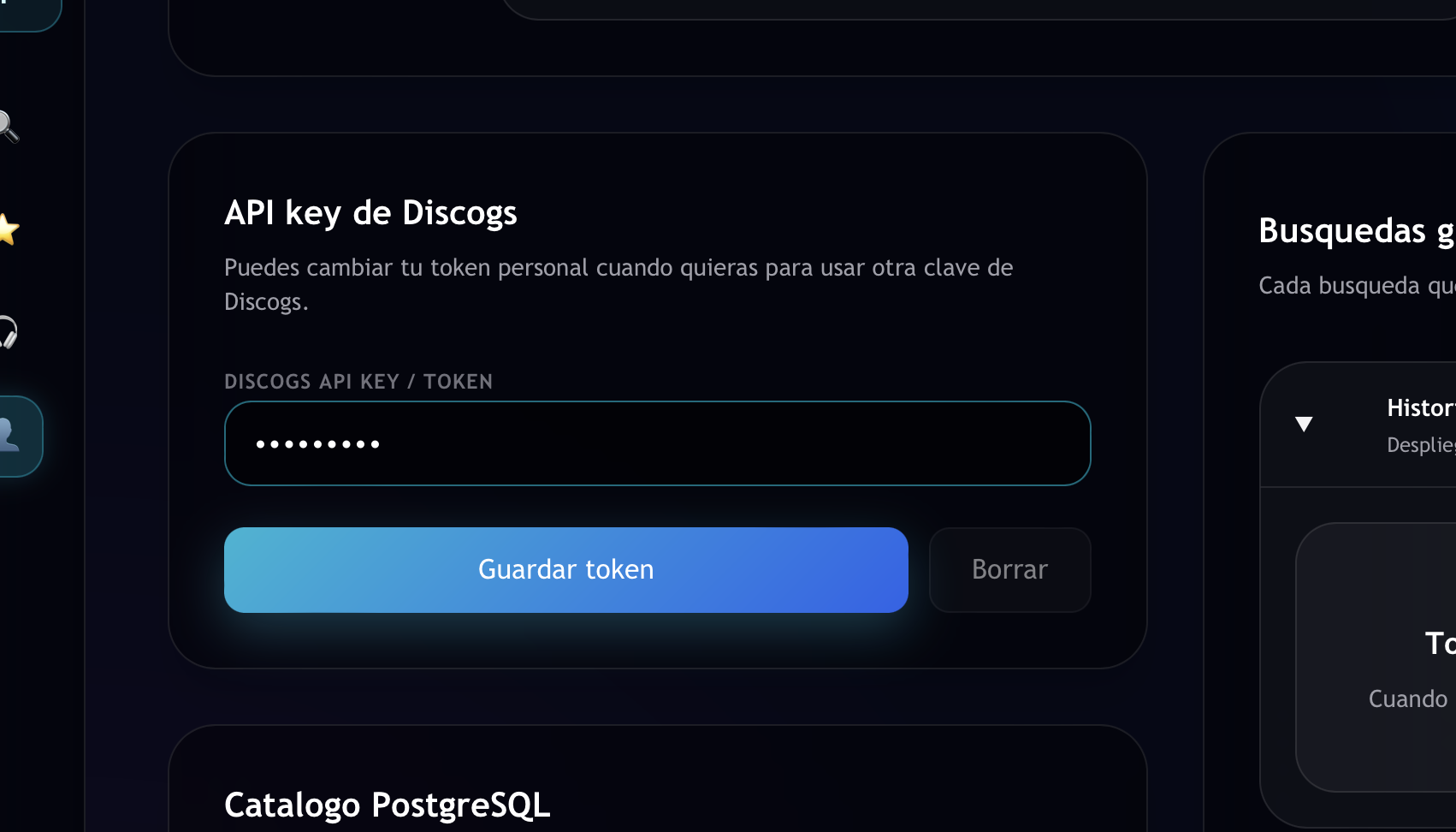
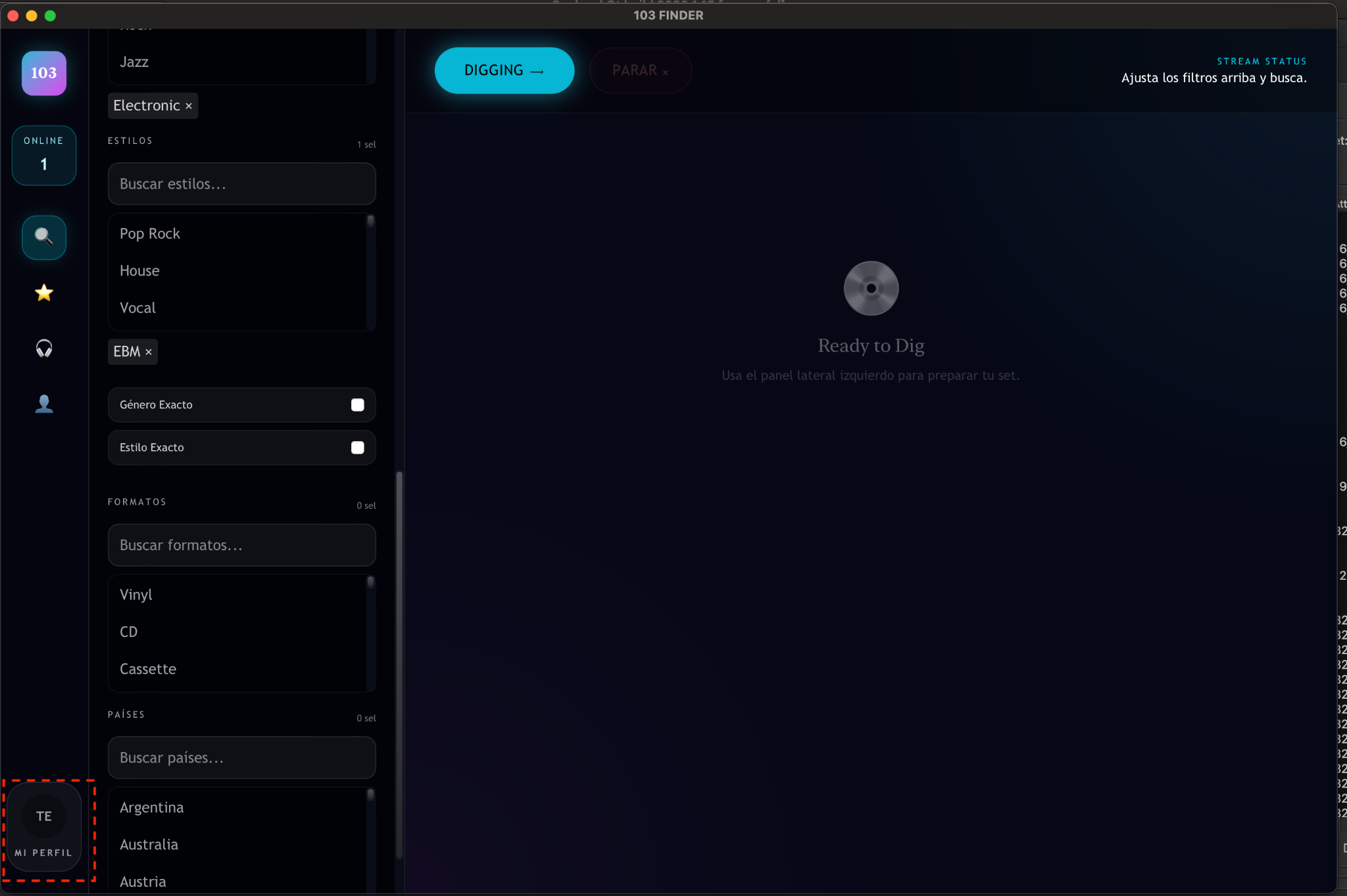
Open your profile inside 103 Finder, paste your Discogs API key in the 'Discogs API Key' section, and click Save.
- 9Start searching
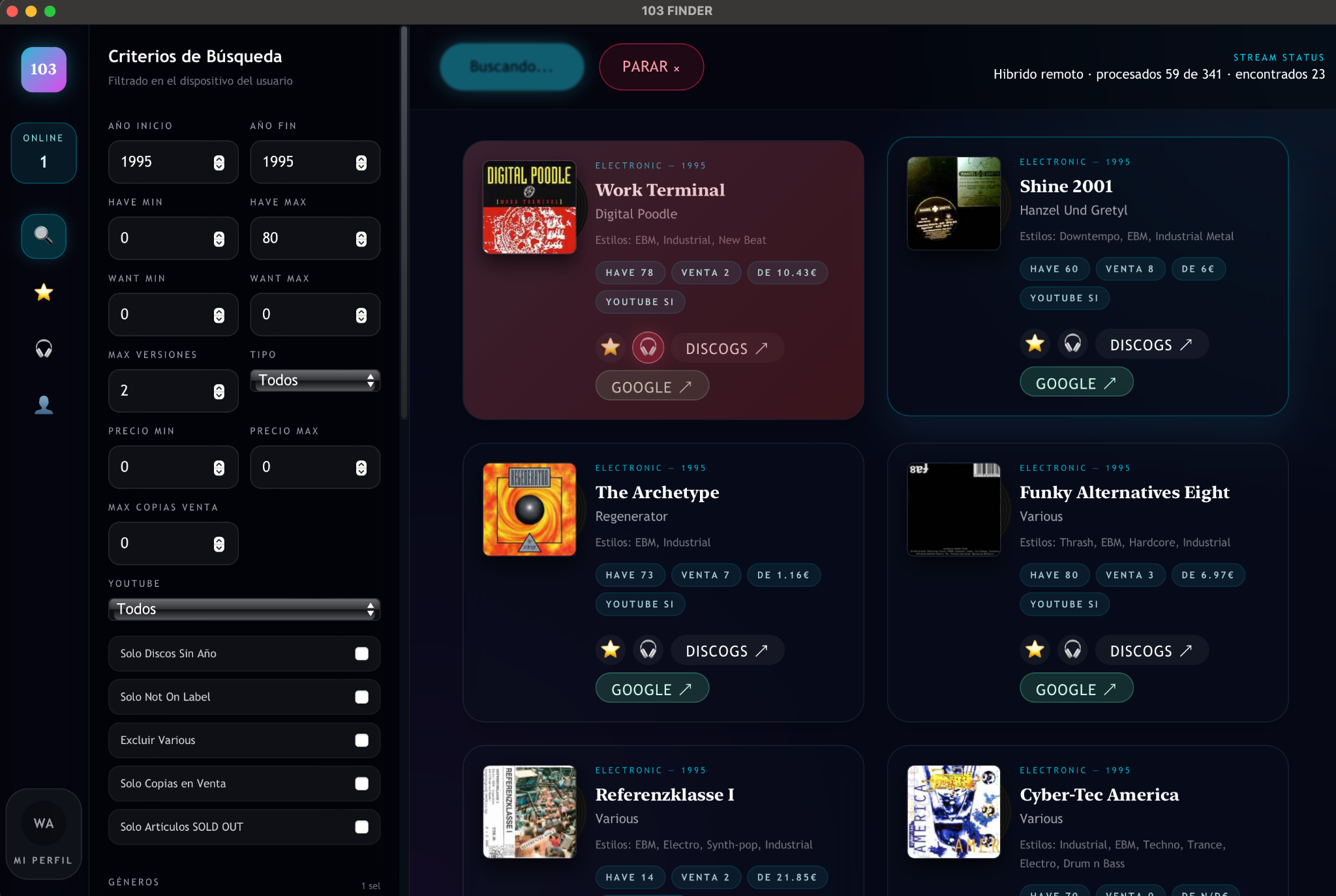
Setup is now complete and you can start using 103 Finder.
macOS installation
macOS requires one extra step to remove the system security quarantine before the app can open.
- 1Download the application
Go to 103finder.shop and download the macOS version for your chip (Apple Silicon or Intel).

- 2Find your macOS username
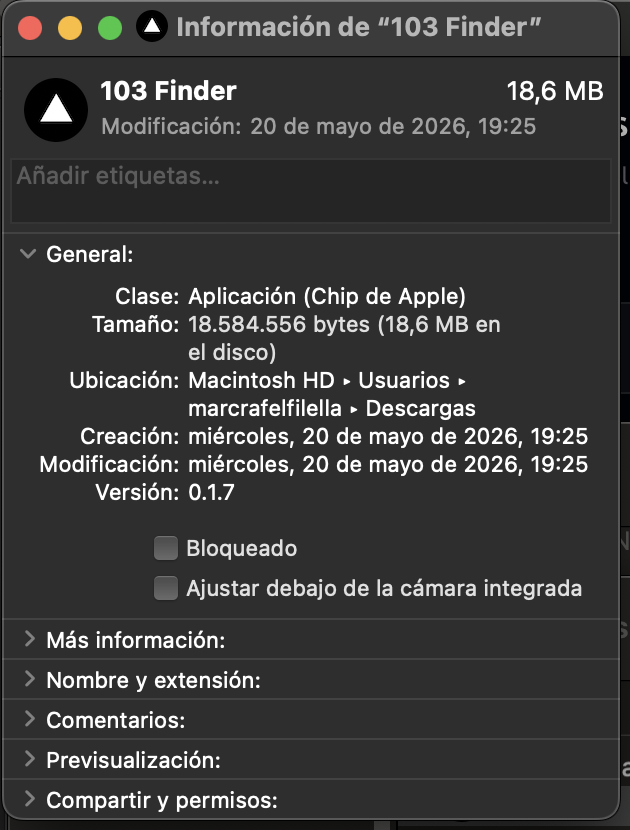
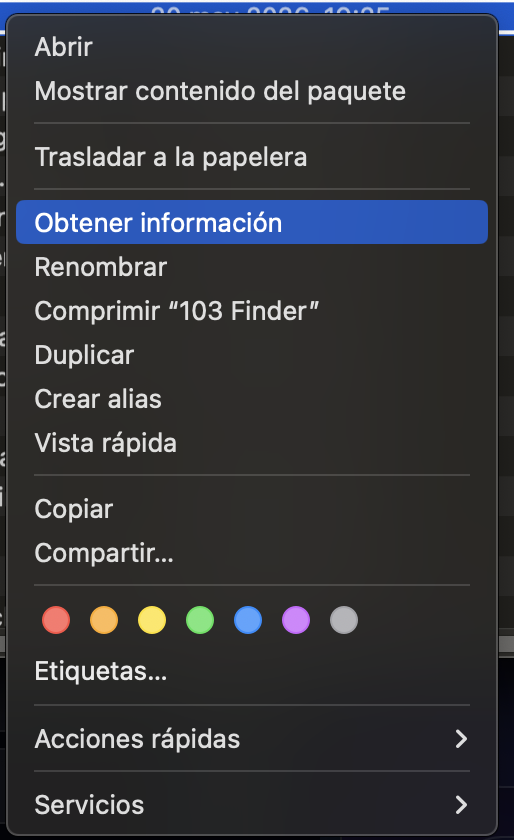
Right-click the application file, select 'Get Info', and identify your macOS username.
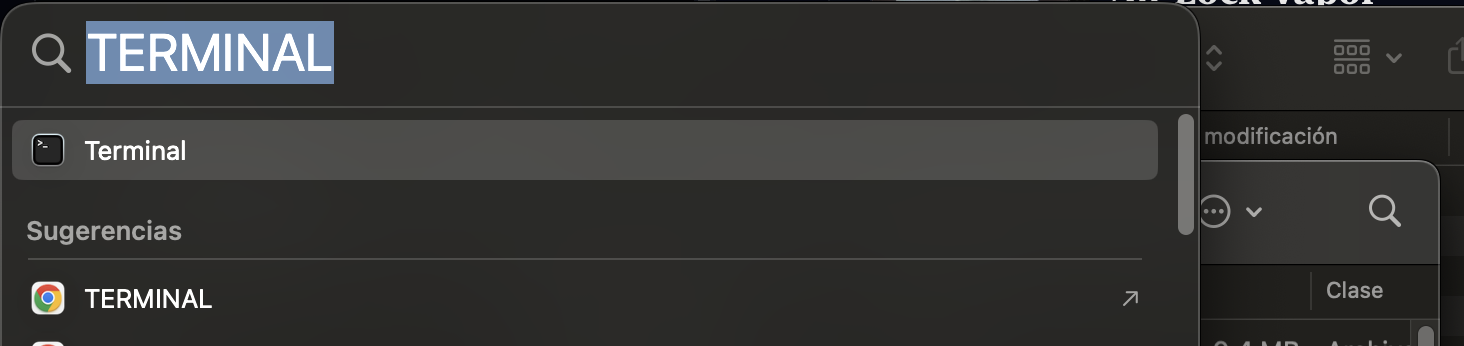
- 3Open Terminal
Open the Terminal application on your Mac (Spotlight → type Terminal → Enter).
- 4Run the setup commands
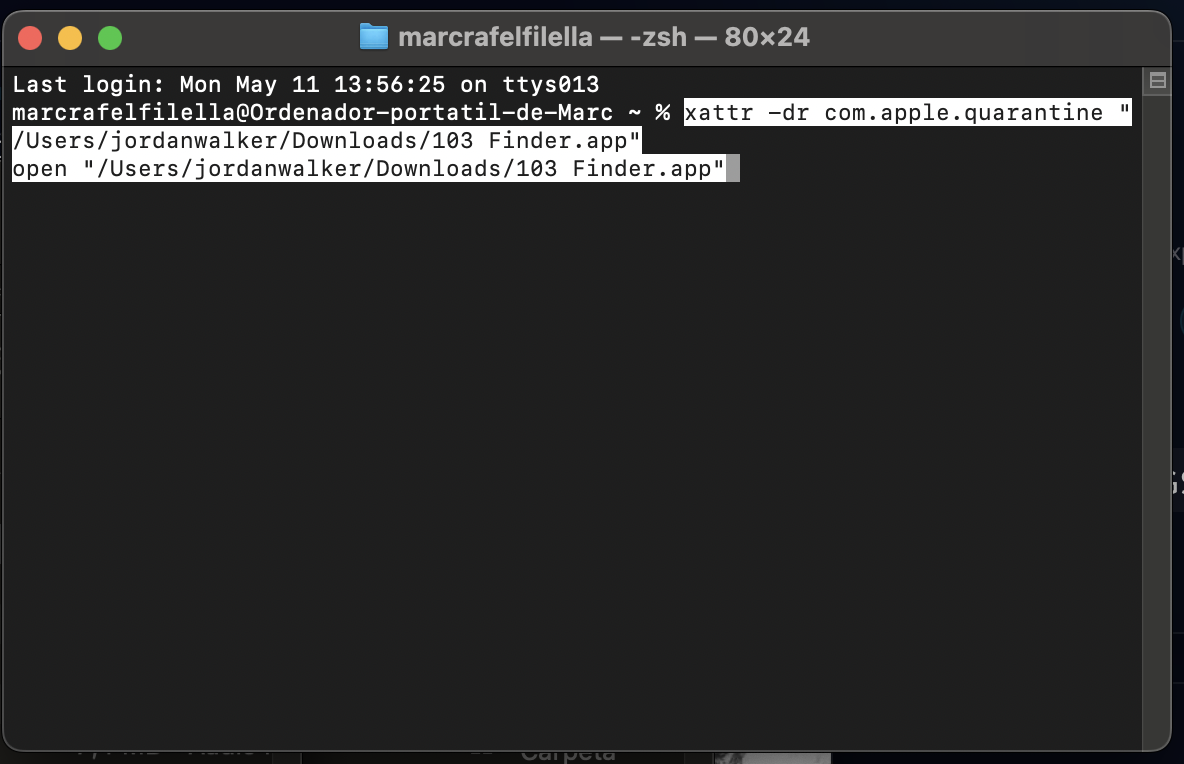
Replace YOUR_USER with your actual macOS username and run the two commands below. They remove the macOS security quarantine and open the app.
xattr -dr com.apple.quarantine "/Users/YOUR_USER/Downloads/103 Finder.app"
open "/Users/YOUR_USER/Downloads/103 Finder.app"
- 5Continue the setup
Once the application opens, follow the exact same steps as Windows: create your account, complete the Stripe payment, log in, restart the app, click 'Move to this device', generate a Discogs API key, add it to your profile, and save.
Need help?
If you experience any issues during installation or setup, carefully review each step and make sure your Discogs API key and account credentials have been entered correctly.
Still stuck? Contact us and we'll help you get set up.